| Customer Inquiry |
|---|
| This is the Customer Inquiry part of the NNEC DAS system. It allows
simple account lookup and usage information. TWACS devices can be pinged and
read from these pages. |
 |
| Account Lookup |
|---|
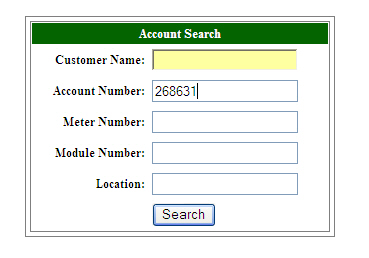
| Account information can be looked up by customer name,
account number, meter number, module number(TWACS) or map location. |
 |
|
| Select Account |
|---|
| If an account has more than one sub-account, you can
select the sub-account you wish to retrieve. |
 |
|
| Account Summary |
|---|
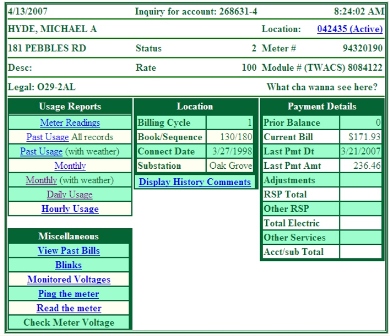
| A summary of account information is displayed. |
 |
|
| Meter Readings |
|---|
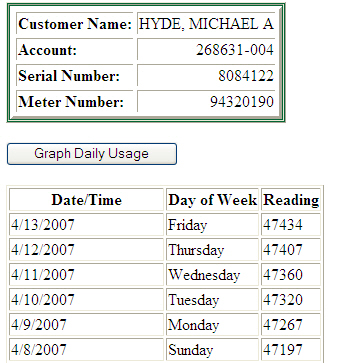
| A summary of daily meter readings are displayed. |
 |
|
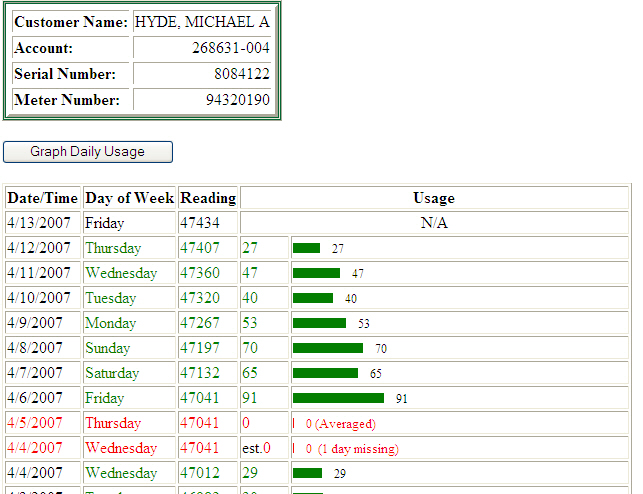
| Past Usage with Weather Data |
|---|
| A summary of daily meter readings, with calculated usage and weather data are displayed. |
 |
|
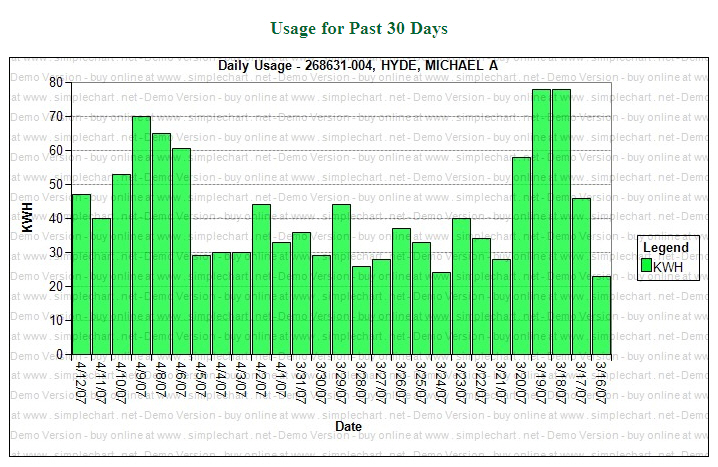
| Monthly Usage |
|---|
| Daily usage by month. |
 |
|
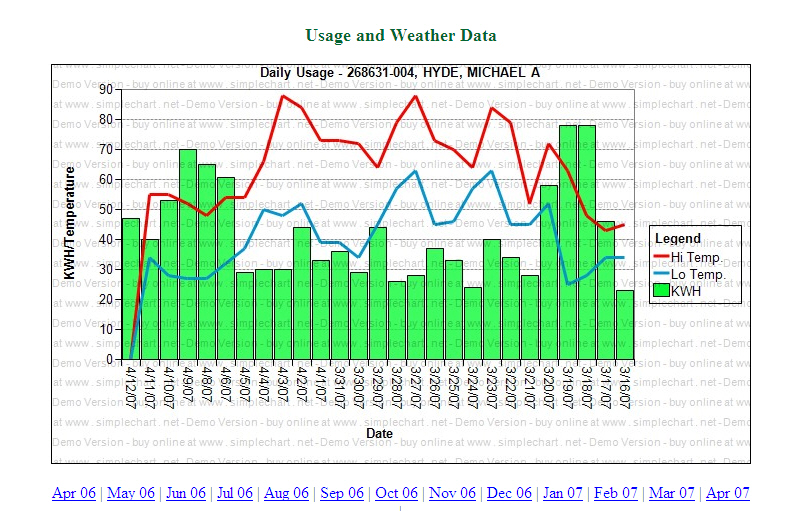
| Daily Usage with weather data |
|---|
| This shows the customers daily usage, with the hi and
low temps for that day. |
 |
|
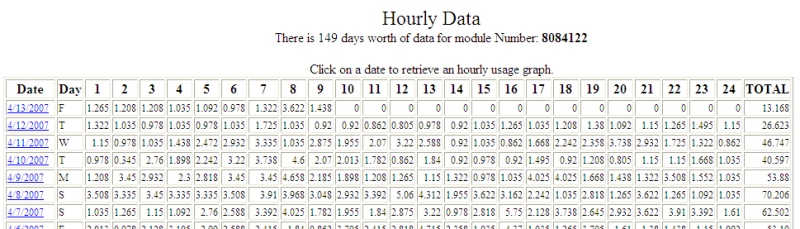
| Hourly Usage Data |
|---|
| This shows the customers hourly usage. |
 |
|
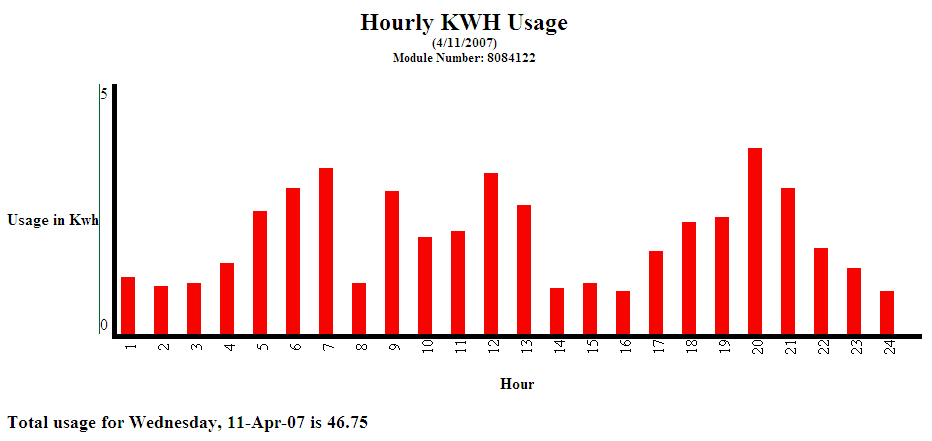
| Hourly Usage Data |
|---|
| This graphically shows the customers hourly usage for a day. |
 |
|
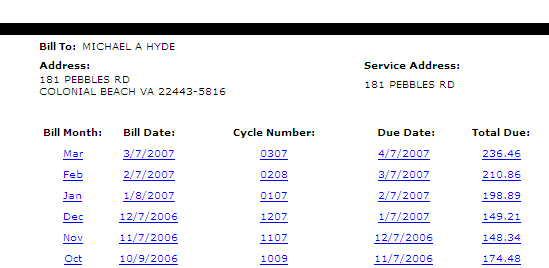
| View Past Bill Summary |
|---|
| This allows the user to view an actual copy of the customers bill. |
 |
|
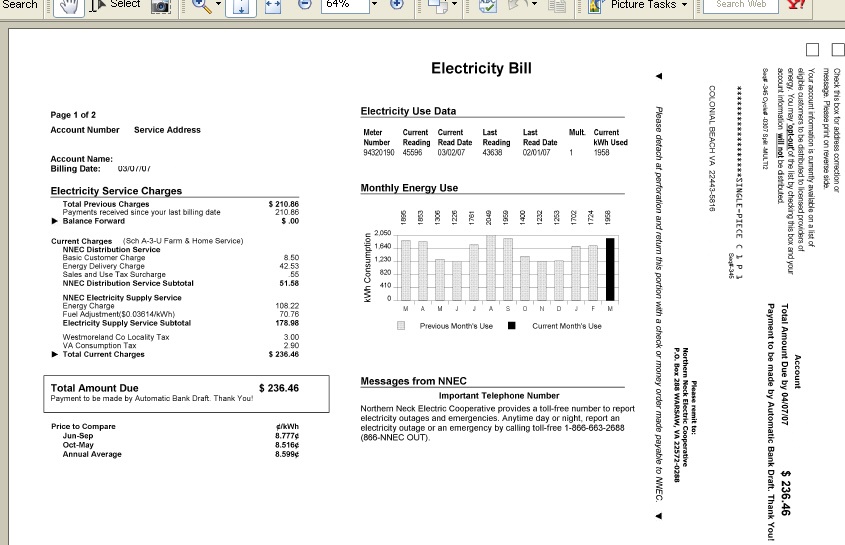
| View Past Bill |
|---|
| This is a copy of the bill the customer received.. |
 |
|
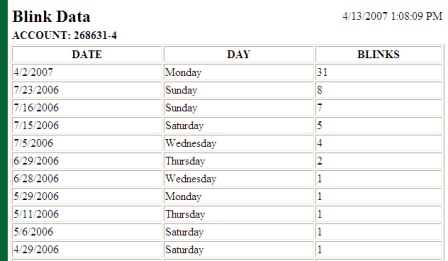
| Blinks |
|---|
| This is a blink report for an account.. |
 |
|
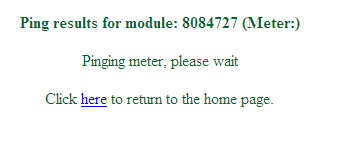
| Pings can be submitted right from the inquiry screen. |
 |
|
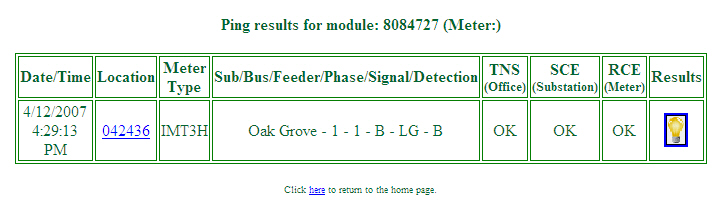
| The ping Results. |
 |
|
| If the ping is successful, the light bulb icon will be
yellow, indicating power to the meter. If this device is a meter, an on
request read can be submitted by clicking on the light bulb icon. |
 |
|
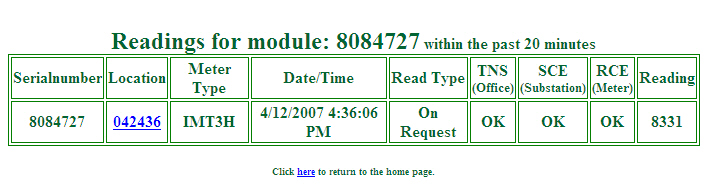
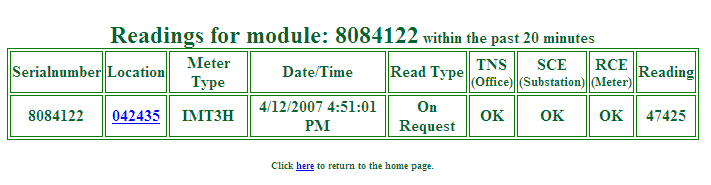
| Within about 20 seconds, the reading is returned. |
 |
|
| Read a meter |
|---|
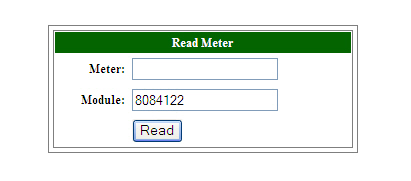
| This is how we read a meter from our Intranet (Web Browser). |
 |
|
| The reading results. |
 |
|